
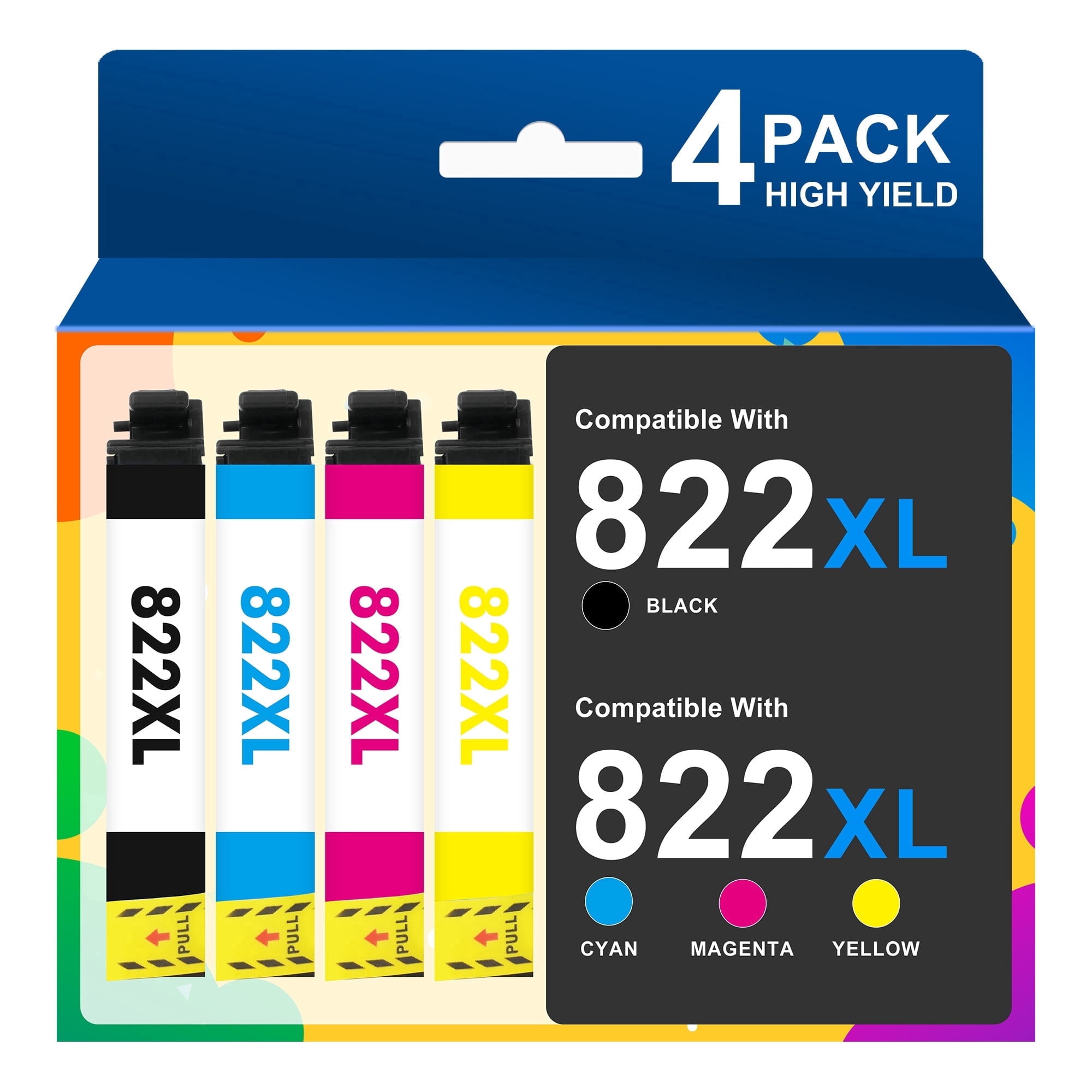
822 Ink Cartridges 4 PACK Compatible for Epson 822 822XL T822XL T822 Ink for WF-3820 WF-4830 WF-4833 WF-4820 WF3820 WF4830 WF4833 WF4820 Printers Ink - 822 XL Black,Cyan,Magenta,Yellow
Product details
| Management number | 230516769 | Release Date | 2026/06/18 | List Price | $8.91 | Model Number | 230516769 | ||
|---|---|---|---|---|---|---|---|---|---|
| Category | |||||||||
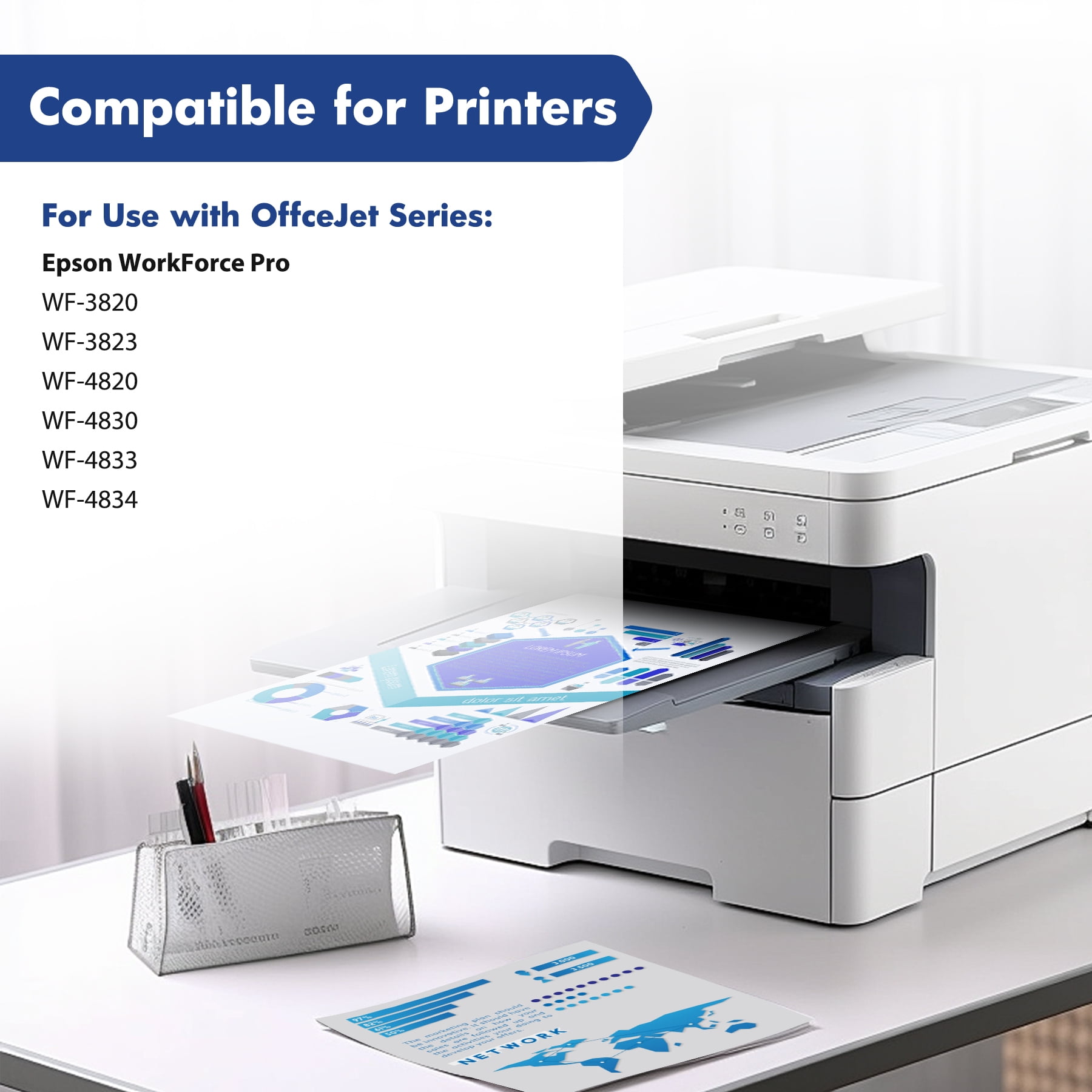
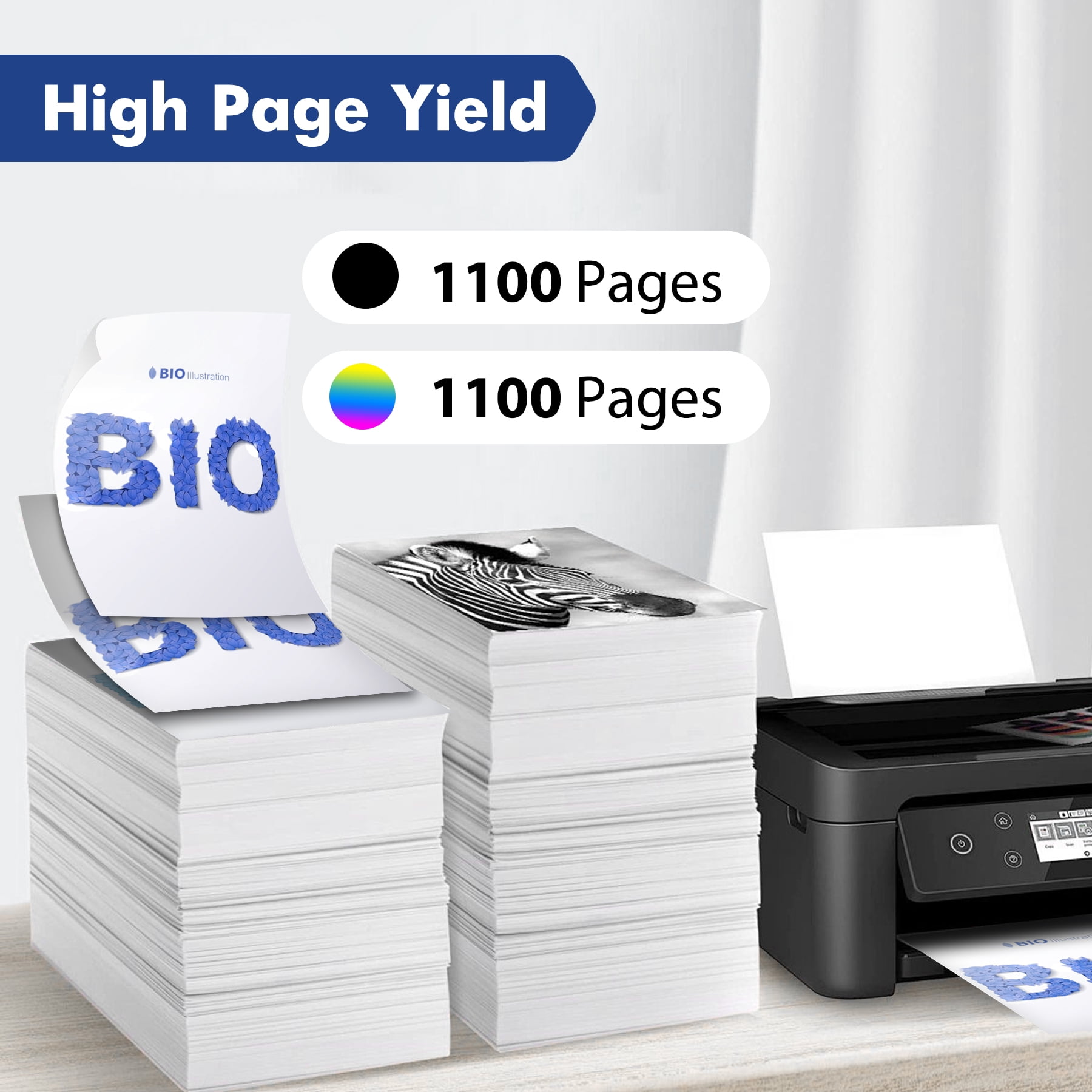
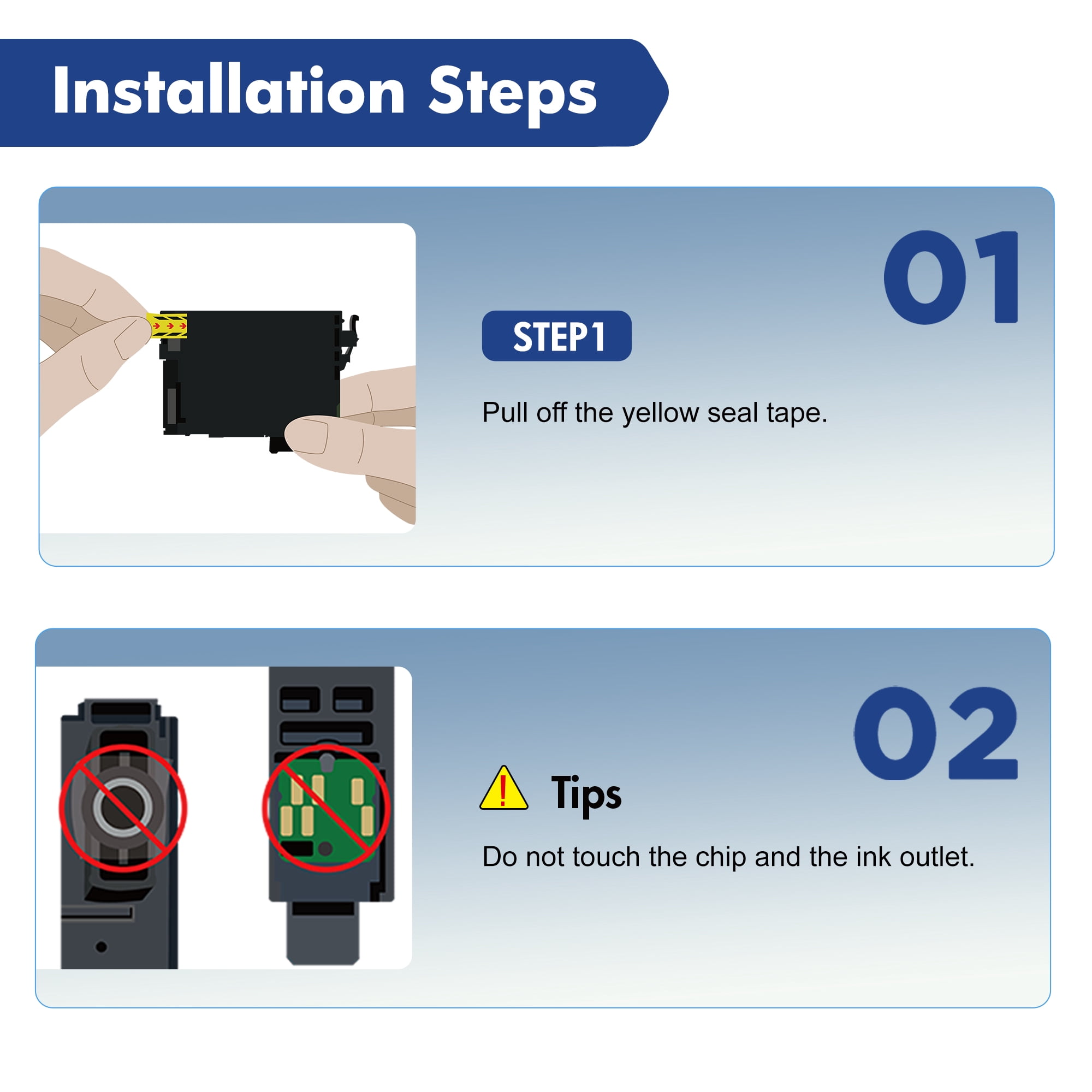
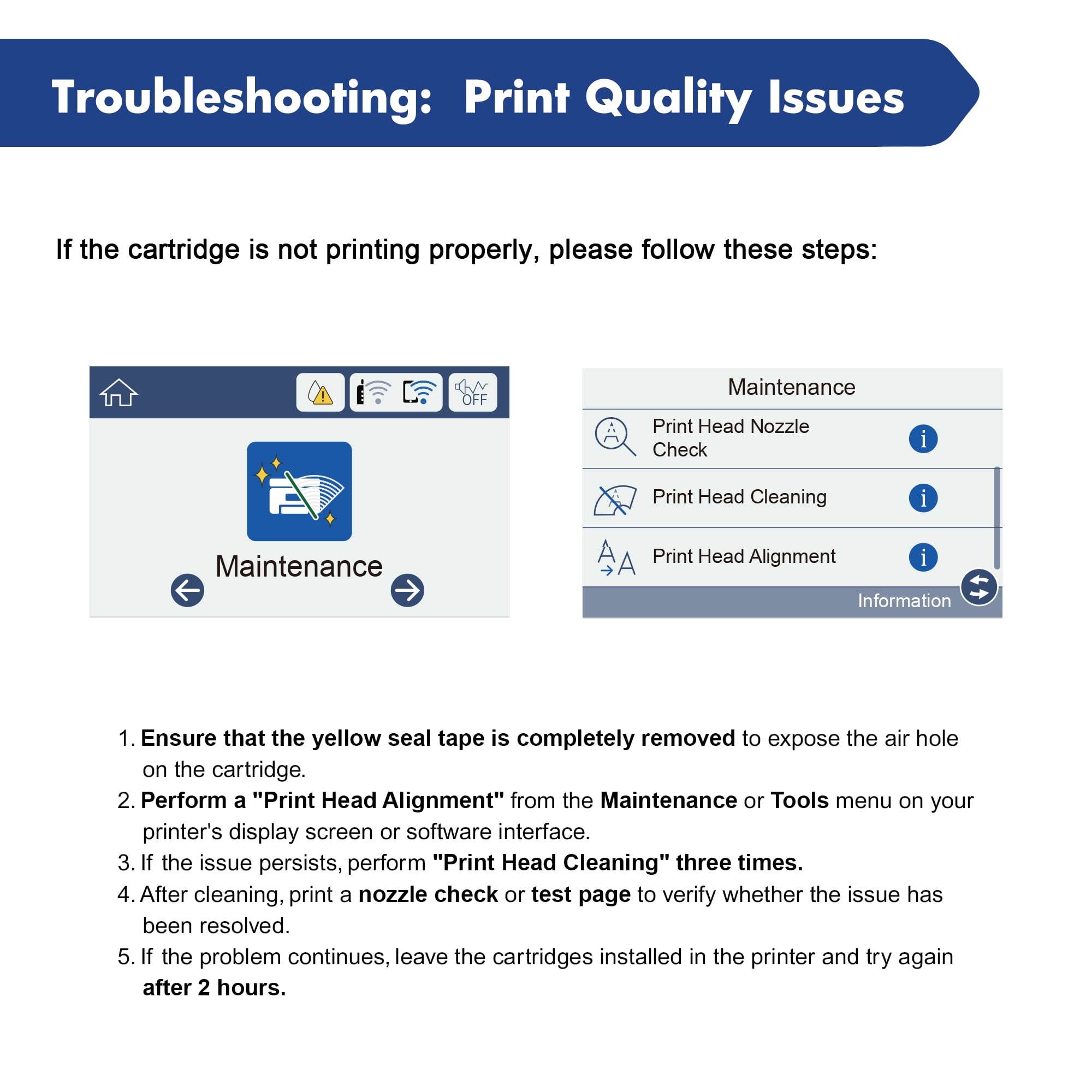
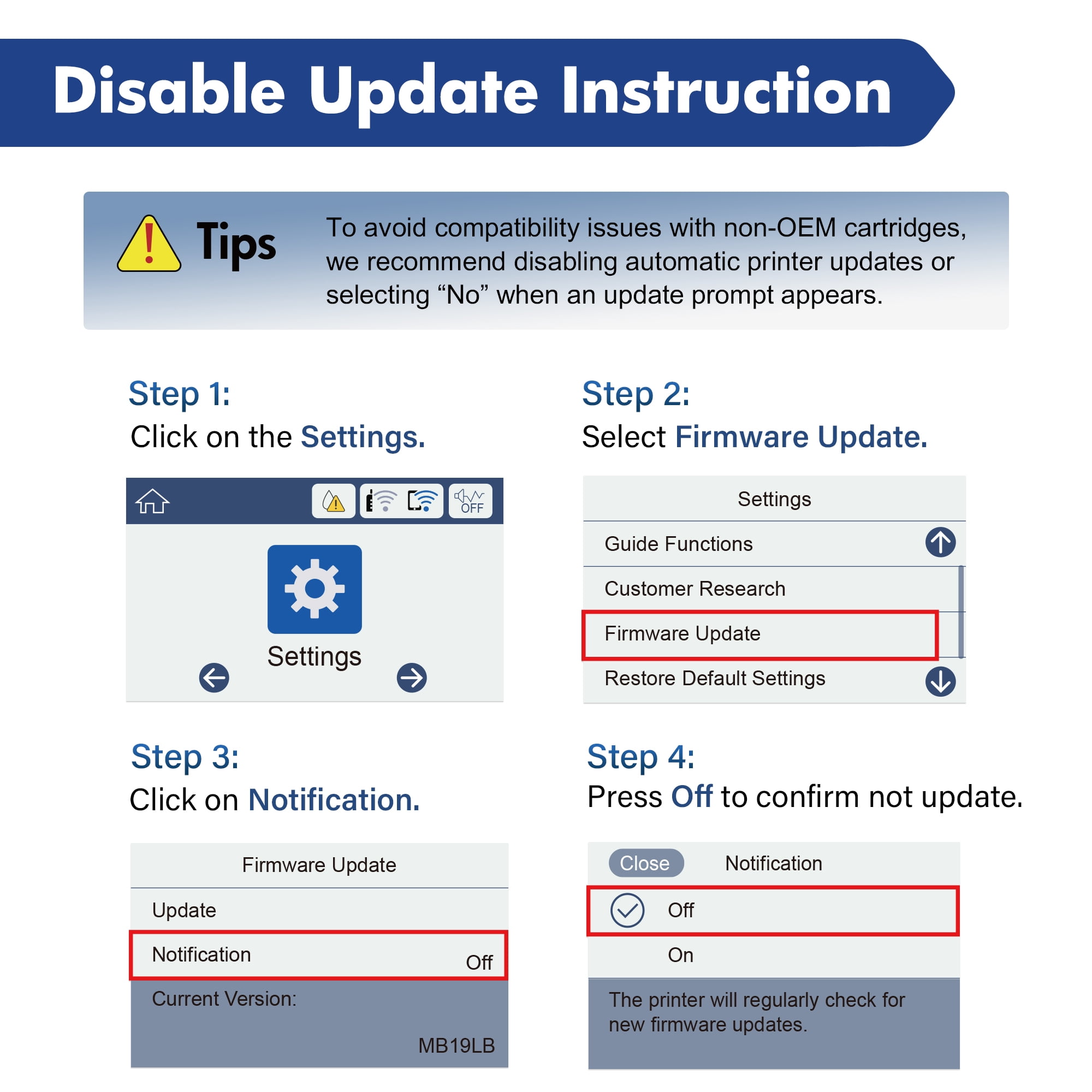
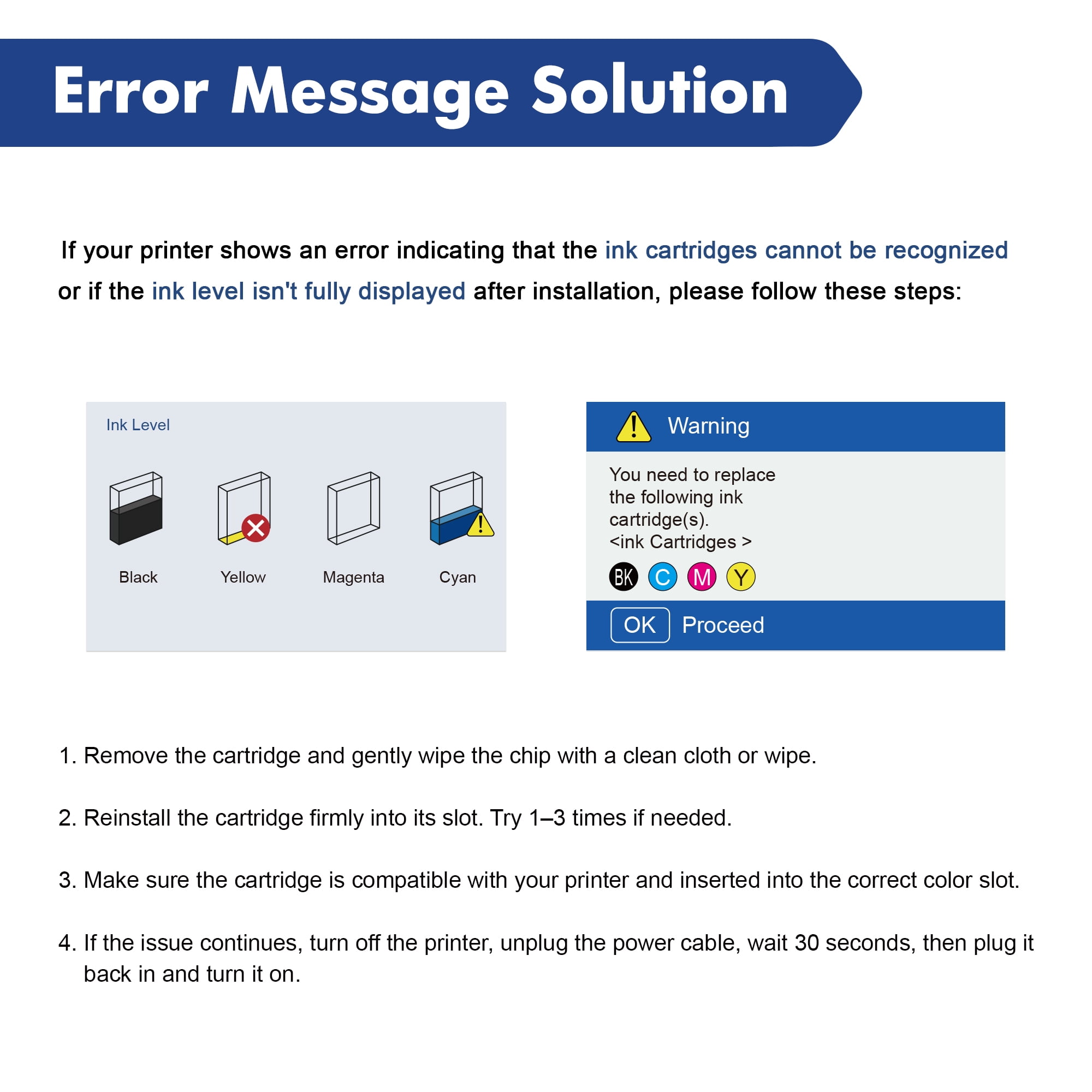
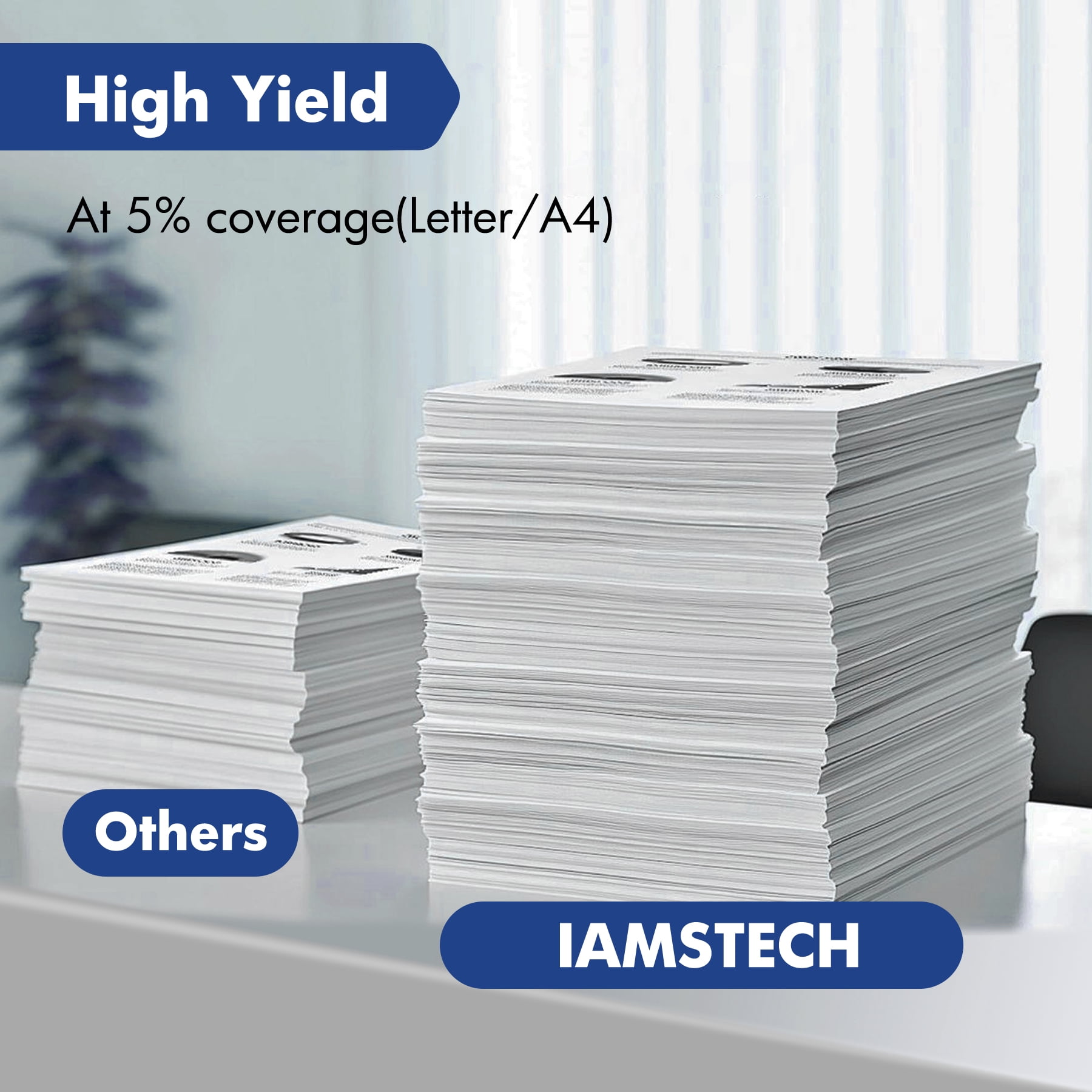
4-PACK 822XL INK CARTRIDGES COMPATIBLE FOR EPSON 822XL T822XL 822 T822 Ink Cartridges (1 x Black, 1 x Cyan, 1 x Magenta, 1 x Yellow)<br><br> COMPATIBILITY PRINTER:<br><br> Epson Workforce Pro WF-4820 WF-4830 WF-4833 WF-4834 printer <br><br> Epson Workforce WF-3820 WF-3823 printer <br><br> Please confirm your Printer Model before placing order.<br><br> WARM TIPS:<br><br> Before placing an order, please be sure to confirm your printer model.<br><br> If prints come with fading color, steak or broken lines when installing new ink cartridges, please try to do printer head cleaning in printer setting once or twice.<br><br> PACKAGE INCLUDE:<br><br> 1 x 822XL Black T822 ink cartridge<br><br> 1 X 822XL Cyan T822 ink cartridge<br><br> 1 X 822XL Magenta T822 ink cartridge<br><br> 1 X 822XL Yellow T822 ink cartridge<br><br> HIGH YIELD:<br><br> Black is 1100 pages per 822 xl ink cartridge(at 5% coverage Letter/A4 )<br><br> Color is 1100 Pages per 822 xl ink cartridge(at 5% coverage Letter/A4 )<br><br>Please read the following Q&A carefully.--------------------------------------------------------------------------------------------------------------------------------------------------------------(Whether you purchase this product or a product from another brand, you can try this method to solve the common problems you encounter.)<br><br> <h1>Error Message Solution:</h1>If your printer shows an error indicating that the ink cartridges cannot be recognized or if the ink level isn't fully displayed after installation, please follow these steps.<br><br> 1. Remove the cartridge and gently wipe the chip with a clean cloth or wipe. <br> 2. Reinstall the cartridge firmly into its slot. Try 1–3 times if needed. <br> 3. Make sure the cartridge is compatible with your printer and inserted into the correct color slot. <br> 4. If the issue continues, turn off the printer, unplug the power cable, wait 30 seconds, then plug it back in and turn it on.<br><br> <h1>Troubleshooting: Print Quality Issues:</h1>If the cartridge is not printing properly, color error, please follow these steps.<br><br> 1. Ensure that the yellow seal tape is completely removed to expose the air hole on the cartridge.<br> 2. Perform a "Print Head Alignment" from the Maintenance or Tools menu on your printer's display screen or software interface.<br> 3. If the issue persists, perform "Print Head Cleaning" three times.<br> 4. After cleaning, print a nozzle check or test page to verify whether the issue has been resolved.<br> 5. If the problem continues, leave the cartridges installed in the printer and try again after 2 hours.<br><br> <h1>Disable Update Instruction:</h1>To avoid compatibility issues with non - OEM cartridges, we recommend disabling automatic printer updates or selecting "No" when an update prompt appears.<br><br> Step 1: Click on the Settings.<br> Step 2: Select Firmware Update.<br> Step 3: Click on Notification.<br> Step 4: Press Off to confirm not update.<br><br> <h1>INSTALLATION STEP</h1><br> Step 1: Pull off the yellow seal tape.<br> Tips: Do not touch the chip and the ink outlet.<br><br>
- COMPATIBILITY PRINTER: Epson WorkForce Pro WF-3820, WF-3823, WF-4820, WF-4830, WF-4833, WF-4834 Printers.
- Cartridge yield (approx): Up to 1*1100 pages per for 822xl Black ink cartridge, Up to 3*1100 pages per for 822XL Color ink cartridge (at 5% coverage Letter/A4).
- What's in the box: 1 x 822XL Black ink cartridge,1 x 822XL Cyan ink cartridge,1 x 822XL Magenta ink cartridge,1 x 822XL Yellow ink cartridge (4 Pack).
- This 822xl 822 ink cartridge Compatible for Epson 822xl Ink Cartridge for Epson Printer.
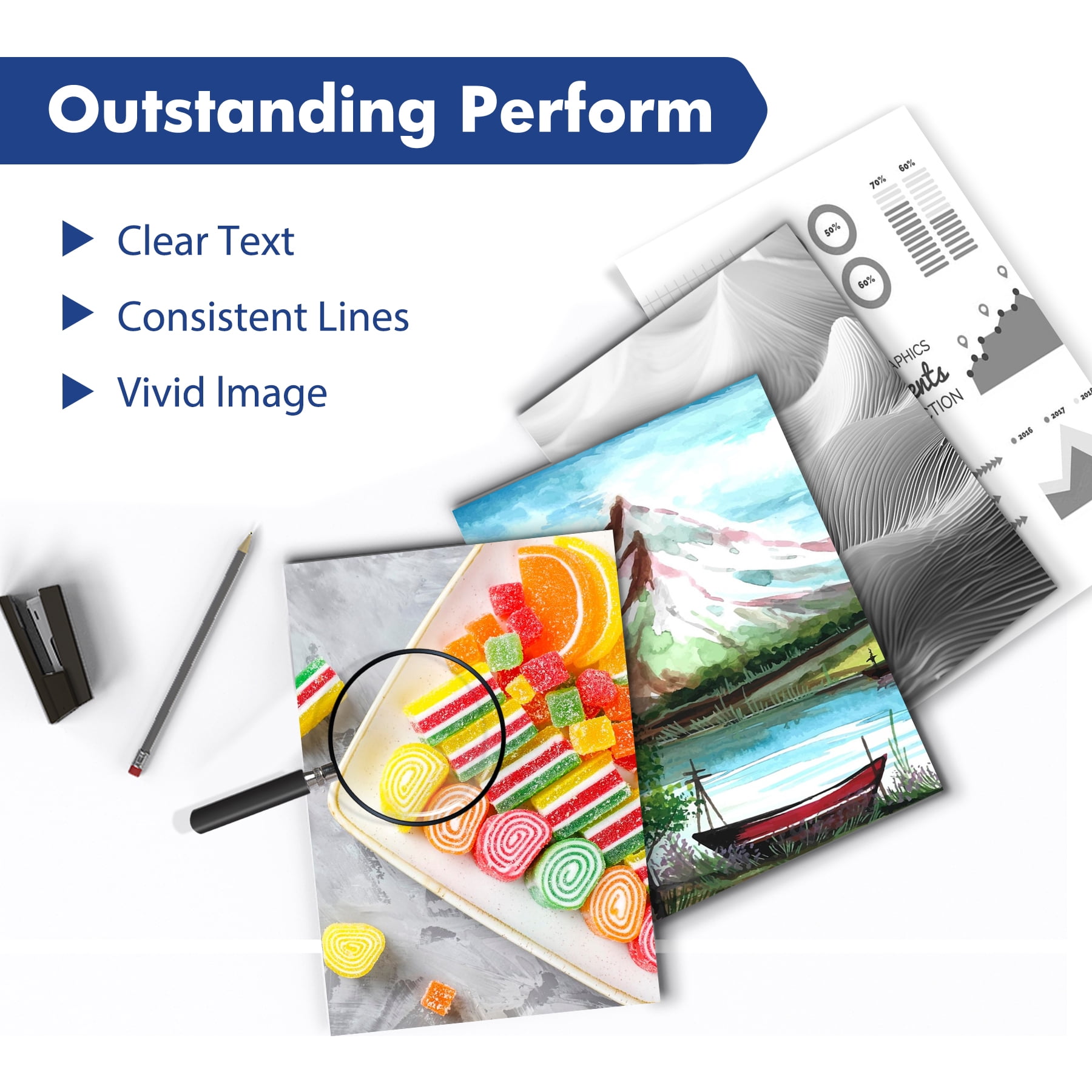
- Our 822xl 822 ink cartridge deliver brilliant quality printing with vibrant color and crisp text.
| Compatibility | Epson WorkForce Pro WF-3820, WF-3823, WF-4820, WF-4830, WF-4833, WF-4834 Printers |
|---|---|
| Ink color | Black;Cyan;Magenta;Yellow |
| Brand | Vipink |
| Ink container type | Ink Cartridge |
| Printer cartridge type | Monochrome |
| Model | 822 |
| Pack quantity | 4 |
| Has written warranty | No |
| Retail packaging | Combo Pack |

Bestseller ranking
Basketball



Customers who viewed this product also viewed
Computers


Correction of product information
If you notice any omissions or errors in the product information on this page, please use the correction request form below.
Correction Request Form